10 Best ChatGPT Prompts for Editing Images: Copy and Use These AI Tricks
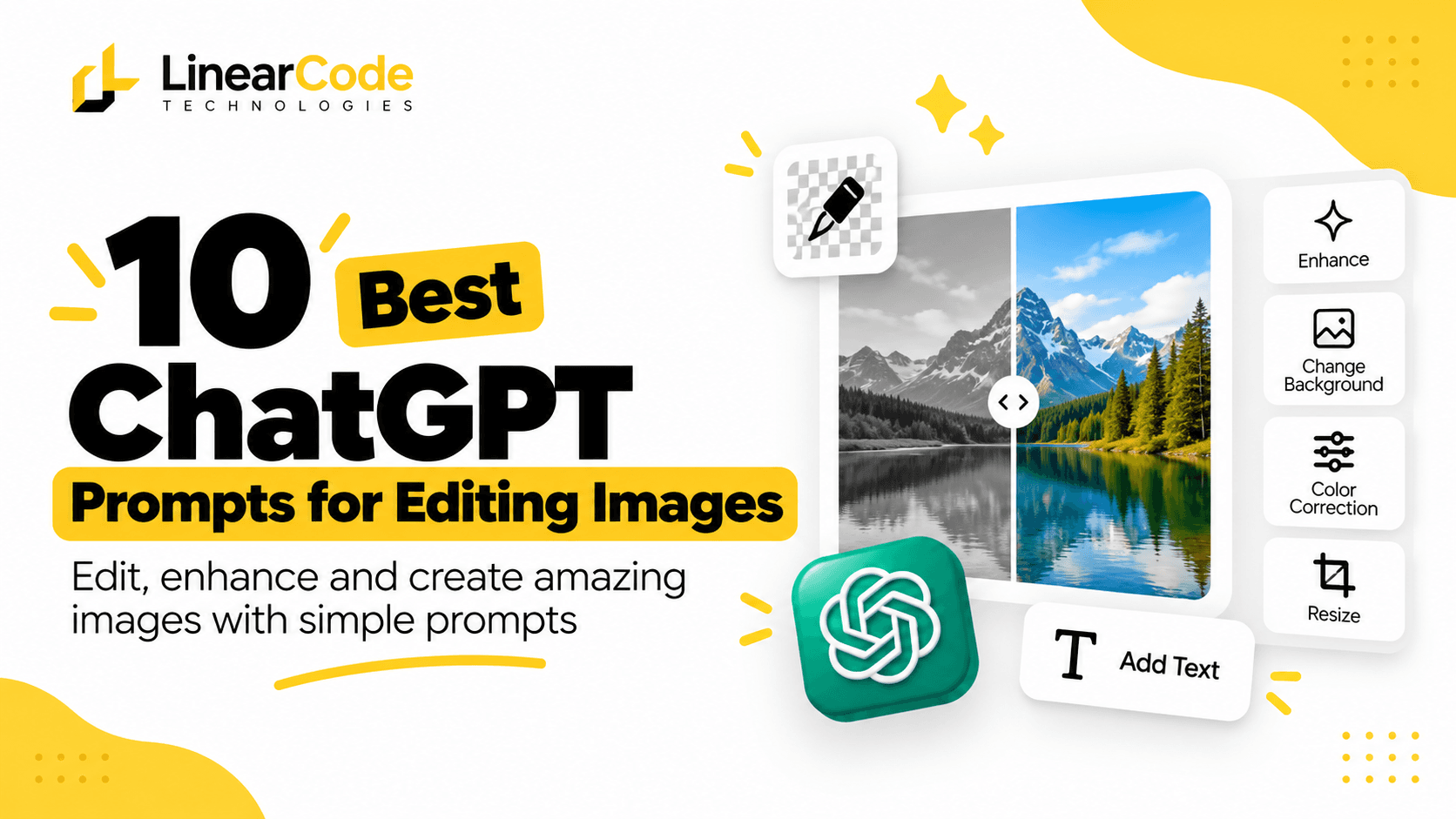
10 Best ChatGPT Image Editing Prompts – Copy these AI prompts to edit and improve your images with LinearCode.
10 Best ChatGPT Prompts for Editing Images: Copy and Use These AI Tricks
You no longer need advanced photo-editing skills or expensive design software to make everyday image improvements. With AI-powered image editing, you can remove unwanted backgrounds, enhance image quality, change colours, remove objects, add text, and create professional-looking visuals using simple written instructions.
One of the easiest ways to experiment with these capabilities is through ChatGPT. You can upload an existing image and describe the changes you want. Instead of manually adjusting multiple settings, you can explain the result you are looking for in natural language.
Whether you are a content creator, business owner, designer, marketer, or someone who simply wants better-looking photos, the right ChatGPT image editing prompts can save time and help you explore new creative possibilities.
In this guide, we have collected 10 useful ChatGPT prompts for editing images. Each one includes a ready-to-copy instruction and a practical example you can customise for your own requirements.
How to Edit Images Using ChatGPT
Before exploring the prompts, here is how to get started:
Open ChatGPT.
Upload the image you want to edit using the attachment option.
Describe the changes you want in a clear prompt.
Review the generated result.
Ask ChatGPT to refine the image if something needs improvement.
You can also select a specific area in the ChatGPT image editor and describe the change you want to make. Editing controls and availability may vary by platform and account. For official instructions, visit the ChatGPT Images Help Guide.
Now, let's explore the 10 prompts.
1. Remove Background – Make Your Image Transparent
Removing a background is one of the most useful image-editing tasks. It is especially helpful when creating product images, profile pictures, promotional graphics, and e-commerce listings.
Instead of manually selecting an object and deleting the background, you can ask ChatGPT to isolate the main subject.
Copy-ready ChatGPT prompt:
Remove the background from this image and isolate the main subject. Preserve the original shape, colours, edges, and fine details of the subject. Make the background completely transparent. Do not crop, distort, or modify the main object. Return a clean, high-quality result suitable for professional use.
Example: Upload a product photograph and ask ChatGPT to remove the background while keeping the product unchanged.
Pro tip: If you need the image for a website or product listing, specifically request a transparent PNG background. Check the exported file to confirm that transparency has been preserved.
2. Enhance Image Quality – Improve Clarity and Sharpness
Have an image that looks blurry, dull, or low-quality? AI image editing can help improve its appearance by adjusting sharpness, lighting, contrast, and visible details.
This is useful for old photographs, product images, website graphics, and social media content.
Copy-ready ChatGPT prompt:
Enhance the quality of this image while preserving its original appearance. Improve sharpness, lighting, contrast, and clarity. Reduce visible noise and make the details look cleaner and more natural. Avoid excessive smoothing, artificial textures, or changes to the subject's original features. Maintain a realistic and professional result.
Example: Upload a slightly blurry product photograph and ask ChatGPT to improve its clarity while retaining the original product design.
Pro tip: Ask for natural enhancement rather than extreme sharpening. AI may reconstruct missing details, so always compare the result with the original before using it commercially.
3. Change Background – Give Your Image a New Look
Sometimes the subject of an image is perfect, but the background does not match your requirements. For example, you may want to replace a plain wall with a professional office, a studio background, or an outdoor environment.
Copy-ready ChatGPT prompt:
Replace the existing background with [DESCRIBE NEW BACKGROUND]. Keep the main subject exactly as it appears in the original image. Match the lighting, perspective, shadows, and colours so the subject blends naturally into the new environment. Do not change the subject's identity, shape, clothing, or important details.
Example: Replace the background of a professional portrait with a modern office featuring large windows and a city view.
Pro tip: Describe the background in detail and ask for consistent lighting. This helps avoid the artificial appearance that can occur when the subject and background do not match.
4. Color Correction – Make Colours Look Natural
Poor lighting can make an image look too dark, too bright, or overly warm. Colour correction helps balance the overall appearance and make images look more polished.
It is particularly useful for product photography, portraits, food images, and marketing visuals.
Copy-ready ChatGPT prompt:
Correct the colours in this image to achieve a balanced and natural appearance. Adjust brightness, contrast, white balance, saturation, and colour tones where necessary. Preserve realistic skin tones and the original colours of important objects. Avoid oversaturation and excessive filters. Give the image a clean, professional photographic finish.
Example: Upload a portrait taken under yellow indoor lighting and ask ChatGPT to make the skin tones and background colours look more natural.
Pro tip: Mention whether you prefer natural, warm, cool, or vibrant colours. This gives the AI a clearer creative direction.
5. Remove Unwanted Objects – Clean Up Your Image
An unwanted object can distract attention from an otherwise excellent photograph. It might be a person in the background, a cable, a signboard, or an unnecessary item on a table.
AI editing can help remove these distractions and reconstruct the surrounding area.
Copy-ready ChatGPT prompt:
Remove [UNWANTED OBJECT] from this image. Reconstruct the area behind it naturally so the edited image looks clean and realistic. Preserve the main subject, original composition, lighting, and surrounding details. Do not modify other objects or introduce unnecessary elements.
Example: Remove a rubbish bin from a travel photograph while keeping the buildings, people, and landscape unchanged.
Pro tip: If the unwanted object is in a specific location, describe its position clearly, such as "the red bag in the bottom-right corner."
6. Add Text to an Image – Create Promotional Graphics
Adding text to an image is useful for social media posts, advertisements, announcements, product promotions, and event graphics.
You can ask ChatGPT to create a visual layout with a headline, subtitle, or call-to-action.
Copy-ready ChatGPT prompt:
Add the following text to this image: "[YOUR TEXT]". Use a clean, modern typography style with excellent readability. Position the text in an area that does not cover the main subject. Use colours that complement the image and maintain a balanced layout. Keep the spelling and wording exactly as provided.
Example: Add "New Collection Available" to a product photograph, with a smaller subtitle reading "Explore the Latest Designs".
Pro tip: Keep your text short and provide the exact wording. Always check spelling, alignment, and readability in the final image, especially when the graphic will be used in an advertisement.
7. Change Object Colours – Experiment with New Colour Combinations
Want to see how a product, outfit, or object would look in another colour? AI image editing can help you visualise different colour variations without recreating the entire image.
This is particularly useful for product concepts, fashion inspiration, interior design, and promotional graphics.
Copy-ready ChatGPT prompt:
Change the colour of [OBJECT] to [NEW COLOUR]. Preserve the original shape, texture, material, lighting, reflections, and shadows. Do not change any other objects or elements in the image. Make the new colour look natural and consistent with the original lighting.
Example: Change a yellow sofa to navy blue while keeping its fabric texture, shape, and surrounding furniture unchanged.
Pro tip: Specify the exact colour when possible. For example, use "matte navy blue" instead of simply writing "blue."
8. Resize Image – Prepare Visuals for Different Platforms
Different digital platforms require different image dimensions. A square image may work well for one social media post, while a vertical image may be more suitable for a Reel or Story.
You can ask ChatGPT to adapt an image to a new aspect ratio while maintaining its important content.
Copy-ready ChatGPT prompt:
Adapt this image to a [ASPECT RATIO OR DIMENSIONS] format for [PLATFORM]. Preserve the main subject and important visual elements. Extend or adjust the background naturally where required. Maintain the original visual style, proportions, and overall quality. Avoid stretching or distorting the subject.
Example: Convert a landscape image into a vertical 9:16 composition suitable for Instagram Reels or YouTube Shorts.
Pro tip: Specify whether you want cropping, background extension, or a redesigned composition. These are different editing requirements, and the right choice depends on the original image.
9. Add Realistic Shadows – Make Products Look Professional
Product images can sometimes look flat when they lack natural shadows. Adding realistic shadows can create depth and make an object appear more naturally placed in its environment.
This technique is useful for e-commerce stores, product advertisements, and promotional graphics.
Copy-ready ChatGPT prompt:
Add a realistic soft shadow beneath [OBJECT] to make it appear naturally positioned in the scene. Match the direction, intensity, and softness of the existing light source. Preserve the object's original shape, colour, texture, and position. Keep the background clean and avoid exaggerated or artificial shadows.
Example: Add a subtle shadow beneath a white sneaker displayed against a clean studio background.
Pro tip: Mention the direction of the light source and whether you want a soft, subtle shadow or a more dramatic one.
10. Create a Flat Lay – Design Attractive Product Arrangements
A flat lay is a photograph taken from directly above, showing objects arranged on a flat surface. It is widely used for product photography, lifestyle content, food photography, and social media marketing.
AI can help you turn an ordinary product image into a more creative flat-lay concept.
Copy-ready ChatGPT prompt:
Transform this image into a professional flat-lay composition. Arrange [SUBJECT] on a clean, attractive surface viewed directly from above. Add a few relevant supporting objects that complement the main subject without creating clutter. Use balanced spacing, natural lighting, realistic shadows, and a coordinated colour palette. Keep the main subject clearly visible and maintain a premium editorial appearance.
Example: Create a flat-lay arrangement of a notebook, pen, coffee cup, and smartphone on a clean wooden desk.
Pro tip: Tell the AI which additional objects are acceptable. If you need an accurate product photograph, ask it not to change the product itself.
5 Tips for Getting Better Results with ChatGPT Image Editing
The prompts above are ready to use, but following a few simple practices can improve your editing experience.
1. Upload a Good-Quality Original
Start with the best available image. A clear original gives the AI more visual information to work with.
2. Be Specific About What Should Change
Explain exactly which object, background, colour, or area needs editing. Avoid vague instructions such as "make it better."
3. Tell the AI What to Preserve
If the main subject must remain unchanged, explicitly say so. Mention its shape, identity, colours, branding, or other important details.
4. Make Small Changes First
Instead of requesting multiple unrelated edits in one prompt, complete one task at a time. Review the result before requesting further changes.
5. Check the Final Image
AI-generated edits may occasionally introduce unwanted changes, distort details, or produce inaccurate text. Review the final image carefully before publishing or using it for business purposes.
Final Thoughts
AI image editing is making everyday creative tasks more accessible. From removing backgrounds and enhancing image quality to changing colours and creating promotional graphics, a well-written prompt can help you achieve useful results without complicated editing workflows.
Save these 10 ChatGPT image editing prompts and customise them whenever you need to improve a photograph, prepare a product image, or create marketing content.
At LinearCode, we help businesses explore AI tools, automation, and software solutions to improve productivity and build better digital experiences.
Have questions about AI tools, automation, software development, or implementing AI in your business? Reach out to LinearCode at info@linearcode.in.
Comments
Loading comments…